View Response Files
In the M&E Monitor, users can view files that have been attached to responses for indicators. The View Response Files feature allows users to access and manage supporting documentation related to their responses.
Steps to View Response Files
To view response files attached to a response for an indicator, follow these steps:
-
View Responses for the Indicator
- Navigate to the Indicators section and select the specific indicator for which you want to view attached response files.
- Access the Responses section to see all responses related to that indicator.
-
Select the View Files Action
- On the right side of the response entry, there is a Select Action dropdown menu.
- Click on the dropdown to reveal the available actions.
-
Click "View Files"
- From the dropdown menu, select the "Response Files" option.
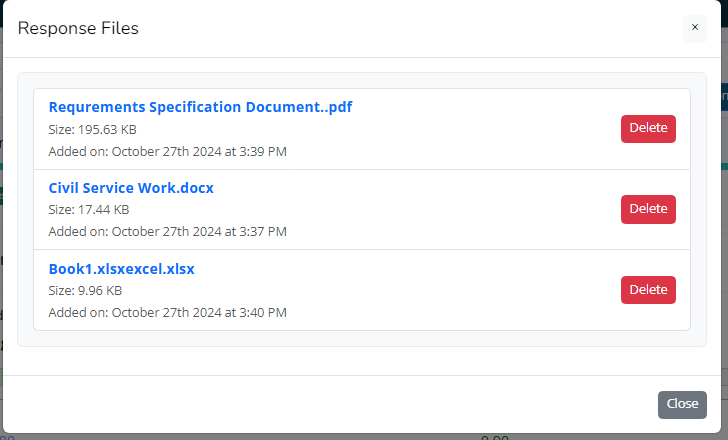
- A dialog will appear, listing all files attached to that response.
Response Files Dialog
-
Review Attached Files
- The dialog will display a list of all files associated with the selected response.
- Each file will be listed with its name and type, providing a clear overview of what has been attached.
-
Remove Files if Needed
Important Notes
- Ensure that you only delete files that are no longer needed or are incorrect. Deleted files may not be recoverable, depending on the system's settings.
Summary
The View Response Files feature provides users with easy access to all documents attached to their responses. By following the steps outlined above, users can effectively manage and review the supporting files for each indicator response, enhancing the overall documentation and progress tracking process.