Adding a Response to an Indicator
In the M&E Monitor, users can add responses to track the progress of indicators over time. Each response represents an update for the indicator, capturing the current state and providing insights through notes, lessons learned, and recommendations.
Steps to Add a Response
To add a response to an indicator, follow these steps:
- Navigate to the Indicators Listing Page
- Click "Add Response" on the Indicator Card
- The Create Response page will be displayed with the following details and fields:
Image for Add Response Link

Create Response Page Layout
-
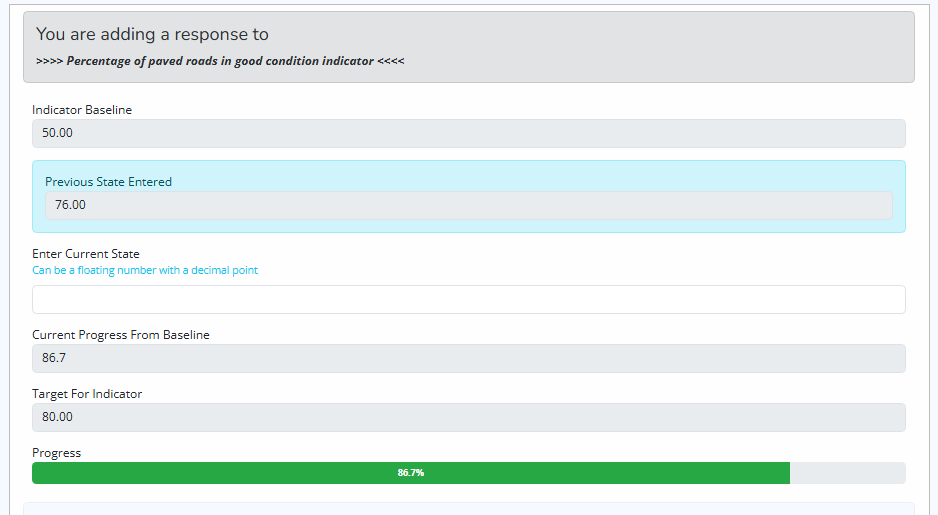
Indicator Title
- The title of the indicator will be shown at the top, indicating which indicator the response is being added to.
-
Previous Current State
- If the indicator has previous responses, the last recorded Current State will be displayed.
- If no previous responses exist, it will show "No response added yet."
-
Baseline and Target Values
- The Baseline and Target values for the indicator will be displayed as read-only fields to provide context for the response.
-
Current State
- A field for entering the Current State of the indicator. This value should represent the latest recorded progress.
- Note: This field is mandatory and must be filled in.
-
Progress Bar
- As the user enters a value for the Current State, a progress bar will be displayed, showing how much progress has been made from the baseline.
- The progress bar visually indicates the percentage of progress towards the target.
Capturing current state
Additional Fields for Response Details
-
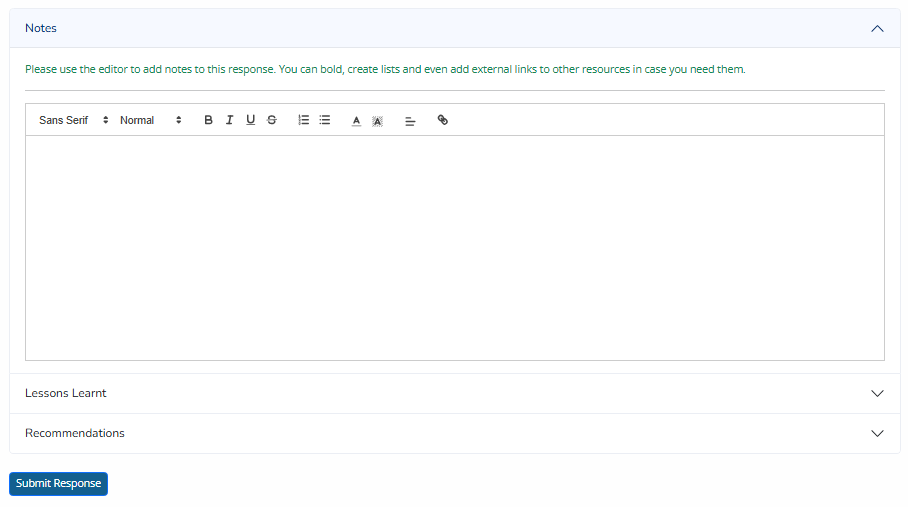
Notes (Optional)
- A field to add any relevant notes for the response, such as observations or context that may have influenced the current state.
-
Lessons (Mandatory)
- A field to document the lessons learned from the progress or challenges encountered. This field is required to ensure valuable insights are captured.
-
Recommendations (Optional)
- A field to provide recommendations for future actions based on the recorded progress and lessons learned.
Capturing other details
Automatic Draft Saving of Response Data
The M&E Monitor features Automatic Draft Saving to enhance the user experience and prevent data loss. As the user makes changes to the response, the data is automatically saved in the browser as a draft. This ensures that if the user navigates away from the page and then returns, the previously entered data will be auto-populated, allowing them to continue editing without losing progress.
How It Works
- Automatic Saving: As the user fills in or updates fields, the data is periodically saved in the browser's local storage.
- Auto-Population: When the user navigates back to the Edit Response page, the saved draft data is automatically loaded into the form fields.
- Draft Clearing: Upon successful submission of the edited response, the saved draft is cleared from the local storage.
Mandatory Fields
- Current State and Lessons are required fields and must be filled in before submitting the response.
- Notes and Recommendations are optional, but adding them can provide additional context and help inform future decisions.
Submitting the Response
After filling in the fields, Click the Submit Response button to add the response. Once submitted, the new response will be recorded, and the indicator's progress will be updated accordingly.
Summary
Adding a response is essential for tracking an indicator's progress over time. By documenting the current state, lessons learned, and recommendations, users can gain insights into the impact of ongoing efforts and make informed decisions to improve outcomes.