Attach Files To Responses
In the M&E Monitor, users can attach files to responses for indicators to provide additional context or supporting documentation. The Attach Response Files feature allows users to upload relevant files easily.
Steps to Attach Response Files
To attach files to a response for an indicator, follow these steps:
-
View Responses for the Indicator
- Navigate to the Indicators section and select the specific indicator for which you want to attach files to a response.
- Access the Responses section to view all responses related to that indicator.
-
Select the Add Files Action
- On the right side of the response entry, there is a Select Action dropdown menu.
- Click on the dropdown to reveal the available actions.
-
Click "Add Files"
- From the dropdown menu, select the "Add Files" option.
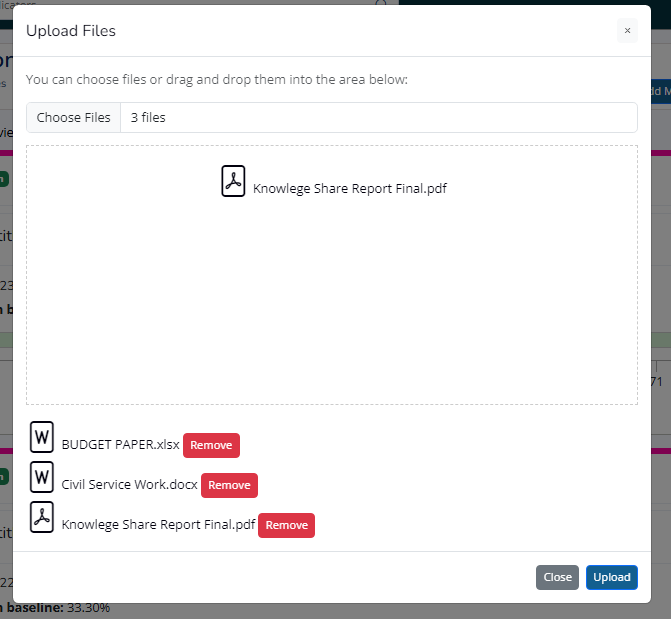
- A dialog will appear, allowing you to choose files for upload.
Uplaod Files Dialog
-
Choose Files to Upload
- In the dialog, you can either:
- Select Multiple Files: Click the file selection button to browse your files and select multiple files at once.
- Drag and Drop: Use the designated drag-and-drop area to upload files by dragging them from your file explorer into the dialog.
- In the dialog, you can either:
-
Review Selected Files
- Once you have selected files, they will be listed in the dialog.
- If you need to remove a selected file, click the Remove button next to the file entry.
-
Upload Files
- After reviewing your selections, click the Upload button to initiate the upload process.
File Type Restrictions
- Users are only allowed to upload the following file types:
- Images (e.g., JPG, PNG)
- PDF Documents
- Word Documents (e.g., DOC, DOCX)
- Excel Spreadsheets (e.g., XLS, XLSX)
Summary
The Attach Response Files feature enhances the response entries by allowing users to upload supporting documents. By following the steps outlined above, users can easily add relevant files to their responses, helping to provide a more comprehensive overview of the progress and context related to each indicator.